
AUTOBOT GUIDES / LEAD RESEARCH
Set up a bot to find leads and work emails each morning
Get a short list of companies, the right people to speak to and their work emails in your Autobot chat. Give Scout the job once, then set a time for it to run.
6 steps · By Autobot · 15 September 2026
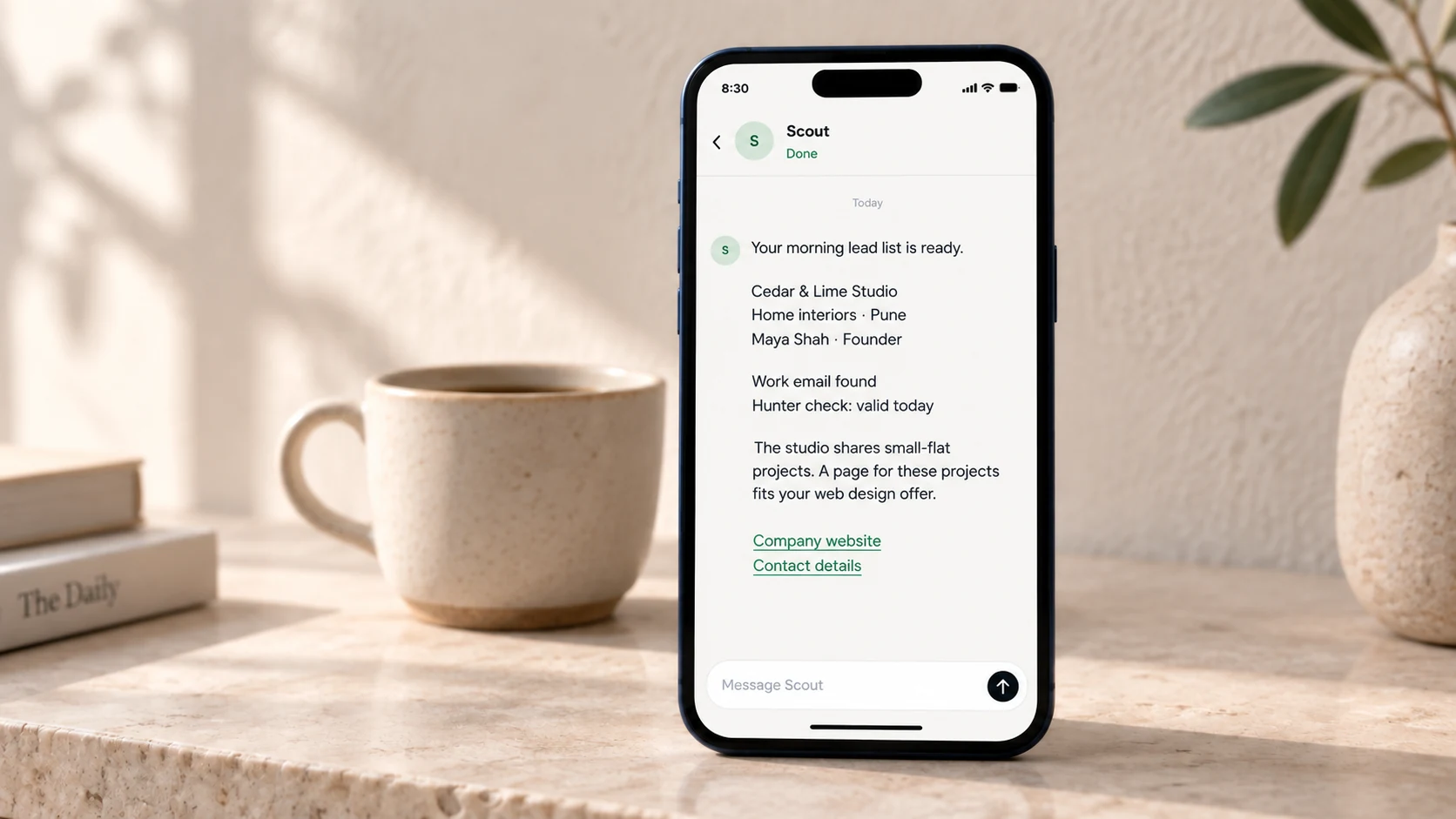
A lead is a person or company that may need what you sell. Scout finds the company first. Then it uses Hunter to look for a contact and check their work email. Adding these details is called lead enrichment.
We'll use a simple example: you build websites for interior design studios in Pune. Swap in your own service, type of business and town.
Before you start
You need an Autobot account, a clear idea of who to find and a Hunter account with API access and enough credits. An API key is a private code that lets Autobot use your Hunter account. Hunter lookups can use credits from that account.
Scout also needs a source it can search for companies. You'll test that before the first run. A short list of companies to skip is useful too.
STEP 1 OF 6
Create Scout
- Open Bots and tap New bot or the + at the top.
- In Name, type Scout.
- Paste this into What should it do?
Find companies I could sell to. Use Hunter to add work contact details. Check the facts and send the list in this chat.
Tap Create. Scout now has its own chat. You'll add the search rules next.
STEP 2 OF 6
Connect Hunter
Hunter is available through Composio, the service Autobot uses to connect apps. It can look for work emails at a company and check an email address.
- Sign in to Hunter. Open the API page in its dashboard and copy your API key. Hunter's setup help explains where to find it.
- In Autobot, go to Bots. Tap your letter at the top to open Account.
- Tap Apps. Under Add, search for Hunter.
- Tap Connect beside Hunter.
- On the connection page that opens, enter your Hunter API key and finish the steps. Keep the key out of bot chat.
- Return to Autobot. Look for Hunter in the connected list with Remove beside it.
If the connection fails, stop here and use the help section below. Don't set a daily job until Hunter works.
Have a skip list in Google Sheets?
In Apps, search for Google Sheets and tap Connect. Choose the Google account that can read your sheet, review the access request and finish sign-in. Return to Autobot and look for Remove beside Google Sheets.
Use a tab called Skip with company names and website links. Send this in Scout's chat:
My skip list is here: [paste your Google Sheet link]. Read the first few rows in the Skip tab and tell me which companies are on it. Leave these companies out of lead research.
Check that the reply matches your sheet. If you have only a few names, paste them in chat and skip Sheets.
STEP 3 OF 6
Find five good companies
First, check that Scout can search. Paste this in its chat and tap the send arrow:
Look up one interior design studio in Pune. Open its website and tell me what it does. Share the page link. If you need an app, tell me which one.
Scout should return a fact and a link you can open. If it asks for an app, connect it from Apps and try again. Hunter's email lookup needs a company website; it does not replace this research step.
Once that works, change the details below to match your business and send:
I build websites for interior design studios in Pune.

Find up to 5 studios that design homes. Use the sources we just checked. Skip firms that only work on offices.

For each studio, show its name, website and why it fits. Add one fact from its site with the exact page link and the date checked.

Use my skip list if I gave you one. Do not repeat a company in this list. Mark ideas as your best guess. Send fewer than 5 if you find fewer good fits.

Send the list here. Tell me if a source or my skip list could not be read. Run this once now.
Open a few links in the reply. Check the town, type of work and facts. If the list misses the mark, tell Scout what to change before the next step.
STEP 4 OF 6
Add a person and work email
Now find someone to speak to at each company. Hunter searches the company domain, the main part of its web address, for work contacts. If Scout has a person's name, Hunter can also look up their email from that name and domain. See Hunter's Domain Search and Email Finder.
Send this to Scout after you like the company list:
Use Hunter to add work contact details for the companies in this list. Start with up to 5 companies and keep at most 1 relevant person per company.

Look for the owner, founder or person who handles the website. Search by the company domain. If you know the person's name but lack an email, use Hunter's email finder.

Check each work email with Hunter's email verifier. Keep the exact result and check date. A confidence score alone is not a passed email check.

For each lead, send:
- Company and website.
- Person's name and role, with a source if available.
- Work email, Hunter's check result and check date.
- Work phone only if the source says it is a business number.
- Contact source links, or say no source link was returned.
- The website fact, its link and why the company fits my service.

Keep leads with a named, relevant person and an email marked valid in the list for outreach. Put all others in a separate needs-checking list. Keep accept_all, unknown, blocked, pending and unchecked emails out of outreach. Exclude invalid and disposable emails.

Do not guess missing names, emails or phone numbers. Say not found. Do not use personal mobile numbers.

Use lookup tools only. Send the results here. If Hunter is not connected or runs out of credits, tell me what stopped and which leads still need work.
Sending this starts the contact lookup and email checks. It does not send outreach or save leads in Hunter.
An email marked valid passed Hunter's checks. It can still bounce, and the result does not show that the person wants your offer. accept_all means the mail server accepts any address at that domain, so Hunter cannot confirm that exact inbox. Hunter explains the results here.
Some small firms will have no named contact in Hunter. Some contacts will have no phone number. A clear not found is more useful than a made-up detail.
STEP 5 OF 6
Set the daily time
Once one search and contact lookup work, send this. Asia/Kolkata is India time. Change it if needed.
Each weekday at 8:30am in Asia/Kolkata, run this lead search and Hunter enrichment again.

Put all the search rules, contact rules, source details and any skip-list link into the routine. Use up to 5 companies and 1 relevant contact per company. Use lookup tools only. Do not send emails or save records in connected apps.

Send the finished leads and the needs-checking list in this chat. Keep missing details clear. Tell me if any source, email check or app fails.

Confirm the start time and time zone you set.
This sets a routine: a job that runs on a schedule. 8:30am is when work starts. The list arrives after the work is done.
STEP 6 OF 6
Pass a checked lead to your outreach bot
Autobot runs the routine in the background. Open Scout's chat to read the list when it is ready.
Choose one good lead. Copy its full entry, including the email check and source links, into your outreach bot's chat. The next guide shows how to give that bot its outreach skills, check past emails and send a message after your OK.
Keep your skip list up to date as you contact companies. The bot may find the same company on another day unless your skip list includes it.
To pause the job, tap Scout's name at the top of the chat. Find the routine in its settings and turn its switch off.
If you get stuck
Hunter will not connect
Check that your Hunter account has API access and that you copied the right key. Try Connect again from Apps. If it still fails, ask Autobot support to check the Hunter connection setup. Keep the key out of support messages.
Hunter finds no email
Check the website domain and person's name. If Hunter still finds nothing, keep the company in needs checking. Use its public contact page to decide what to do next.
No list arrived
Check that the routine is on. Ask Scout what stopped it. A lost connection, Hunter credit limit or Autobot usage limit can stop the work.
You want to use a shared sheet
Ask Scout to save the lead entries to a Google Sheet. It asks for your OK before adding rows. Give the same sheet link and tab name to the outreach bot, then ask it to read one row and check that the details match.
Give Scout its first job
Start with five companies. Check their contact details, then set the daily time.