
AUTOBOT GUIDES / OUTREACH
Turn your lead list into outreach with a second bot
Give your outreach bot a checked lead from Scout and a clear set of skills. It can check past emails, write a useful first message and send it through Gmail after your OK.
6 steps · By Autobot · 15 September 2026
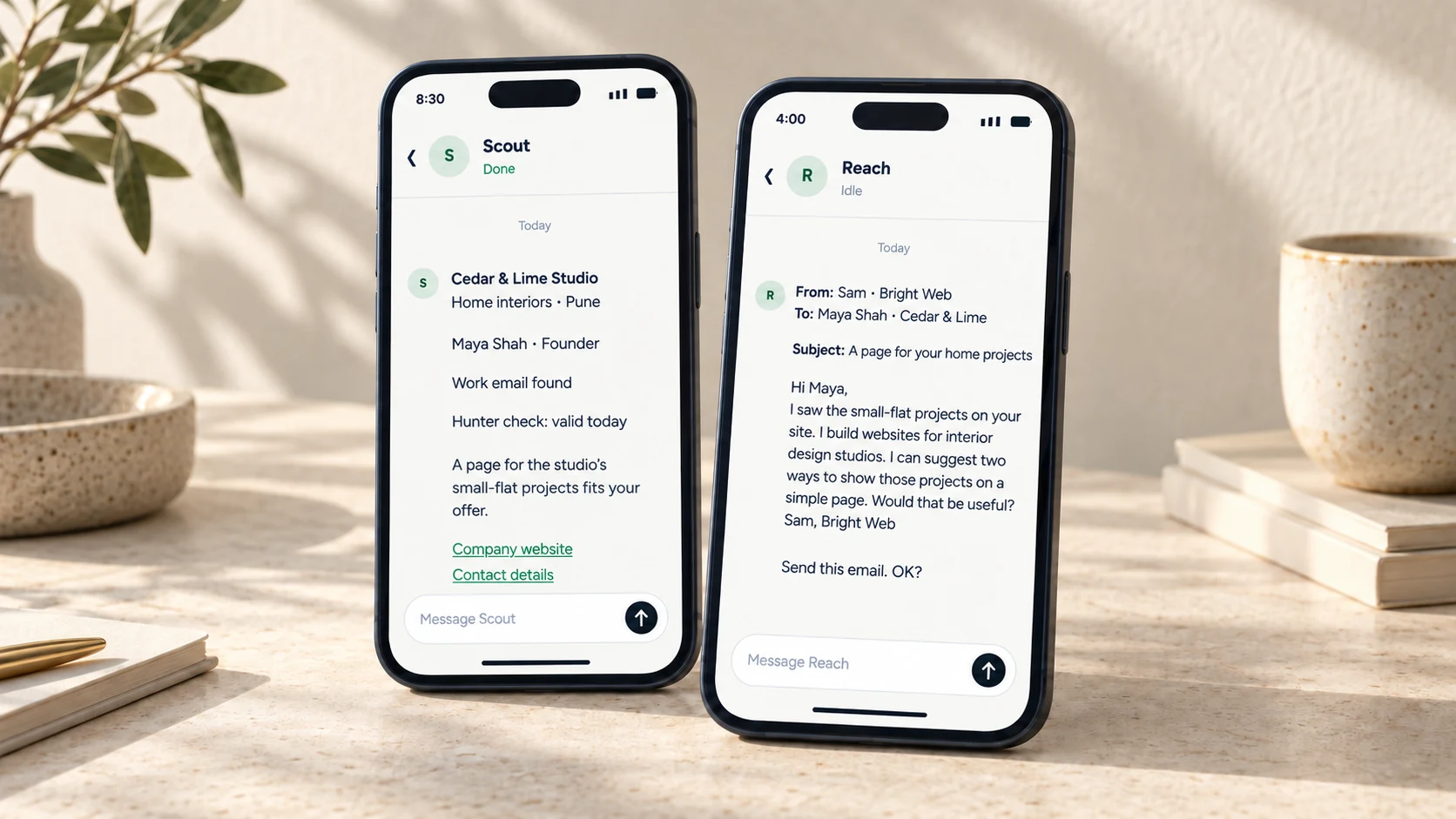
In the first guide, Scout found companies and used Hunter to add work contact details. Now you'll make Reach, a bot that handles the next step.
Outreach means getting in touch with someone who may need your service. We'll keep the same example: you build websites for interior design studios in Pune.
Before you start
Have one checked lead from Scout, a Gmail account you use for work and a clear offer. Your lead should have a company, named contact, work email, a recent Hunter result of valid, and source links.
Keep Hunter connected so Reach can check the email again before sending. A valid email does not prove that someone wants your offer. You still need to choose people for whom it makes sense.
STEP 1 OF 6
Create Reach and give it skills
A skill tells the bot how to do part of its job. Here, you'll add those steps as plain instructions in the bot's job field.
- Open Bots and tap New bot or +.
- Type Reach in Name.
- Replace the text in brackets below. Paste the whole block into What should it do?
Help me contact good leads from Scout through Gmail.

My name: [your name].
My business: [business name].
My service: [what you sell and who it helps].
My offer: [one small, clear next step you can deliver].
My proof: [a true result with a source, or none].
My sign-off: [your name and business details].

Use these skills for each lead:

1. Check the fit. Read the lead and its sources. Check the person's role. Explain why my service may help. Do not make up a need or problem.

2. Check the contact. Use Hunter to verify the work email again before a first send. Use only named contacts with a valid result. Put other leads aside. Keep the source and check date.

3. Check past contact. Search my Gmail for this person and company. Check up to 20 matching emails per call. Skip opt-outs, bounces, people already contacted and my skip list. If there may be more history, tell me before going on.

4. Write like me. Use short, plain sentences. Keep the email under 100 words. Mention one true, useful fact from the source. Link it to my offer. Ask one simple question. Use only the proof I gave you. Do not promise sales or say I found a problem I have not checked.

5. Send with care. Show the sender, recipient, subject and full message. Ask for my OK before sending. Send once after I say Yes. Report the actual result and the Gmail message or thread ID if returned. If the send result is unclear, check Gmail before trying again.

6. Handle replies. Stop follow-ups when someone replies, opts out or the email bounces. Bring replies to me in this chat. Ask for my OK before sending any reply or follow-up. Never invent a sent message or a reply.
For the example offer, you could use: I can suggest two ways to show your home design projects on a simple web page. Use this only if it is work you can do.
Tap Create. Reach now has these rules as part of its job.
STEP 2 OF 6
Connect Gmail
- From Bots, tap your letter to open Account, then tap Apps.
- Under Add, search for Gmail and tap Connect.
- Choose your work Google account. Review the access request and finish sign-in.
- Return to Autobot. Look for Gmail in the connected list with Remove beside it.
If Gmail is already connected, check that it is the account you want to send from. Hunter should also be connected from the first guide.
In Reach's chat, paste this and tap the send arrow:
Check which Gmail account is connected and show me its email address. Tell me whether Hunter is ready to check a work email. Do not send or change anything yet.
Check the reply before you move on. Composio's Gmail connection supports reading mail, sending mail and replying to a thread.
STEP 3 OF 6
Pass one lead from Scout to Reach
Open Scout's chat and copy one full lead entry. Paste it into the block below. Include the company, person, role, work email, Hunter result, check date and source links.
Here is one lead from Scout:

[paste the full lead entry here]

Use your outreach skills on this lead. Check the sources, email and Gmail history. Use the skip list below too.

Skip list: [names and emails to skip, or none].

If a detail is missing or cannot be checked, tell me what you need. If the lead is a good fit, show me one email I can review.
Send this in Reach's chat. This is the handoff: you give Reach the details Scout found. Reach needs that entry or access to a shared sheet to use the lead.
Reach should check the lead, look for past contact and prepare the message. If the person asked you to stop, or the address fails its check, the bot should set the lead aside.
STEP 4 OF 6
Review the email and send it
Check the From, To, Subject and full message. Make sure the fact is true, the offer fits and the name is right.
Here is how a first email could read:
From: Sam at Bright Web
To: Maya Shah at Cedar & Lime Studio
Subject: A page for your home projects\Hi Maya,
I saw the small-flat projects on Cedar & Lime Studio's site. I build websites for interior design studios. I can suggest two ways to show those projects on a simple page. Would that be useful?
Sam, Bright Web
Reach should ask before sending. When it asks to send the exact email you have reviewed, reply Yes. That OK covers one send.
If you want a change, ask for it first. Read the revised email before saying Yes. After a send, look for Reach's result and check your Gmail Sent folder. Sending is not the same as getting a reply.
STEP 5 OF 6
Check replies on a schedule
After a real send is confirmed, paste this in Reach's chat. Change the time zone if needed.
Each weekday at 4pm in Asia/Kolkata, check the Gmail threads for the outreach emails you have sent for me.

Put my outreach rules and the known thread IDs into the routine. If a thread ID is missing, find and confirm the sent message first. Check up to 20 matching messages per call. Tell me if there is more to check.

Send a short update here: who replied, who asked to stop, which emails bounced and which have no reply yet. For each reply, say what needs my attention.

Do not send or change anything in Gmail during this check. Do not follow up with anyone who replied, opted out or bounced. Ask me before each outgoing message.

Confirm the time and time zone you set.
This check runs in the background. It looks for replies when the routine runs, so it is not an instant alert. If you add new outreach threads later, ask Reach to add their IDs to the routine.
Start without follow-ups. Read the replies first, then decide whether to contact any unanswered lead again.
STEP 6 OF 6
Keep the two bots in sync
Tell Scout which companies you have contacted so it can skip them next time. For a small list, send the names and website links in Scout's chat.
For a shared Google Sheet, use one row per lead. Keep the contact details, source links, email check, status and Gmail thread ID together. The thread ID helps Reach find the same email chain again. Useful status names are Needs checking, Ready, Sent, Replied and Do not contact.
Connect Google Sheets from Apps, then give both bots the same sheet link and tab name. Ask each to read one row and check that the results match. Scout needs your OK to save leads; Reach needs your OK to update a row after a send or reply.
Start with the copy-and-paste handoff. Move to a sheet when the list is large enough to need one.
If you get stuck
Reach cannot see Scout's leads
Paste the full lead entry into Reach's chat, or share a sheet it can read. Just saying "use Scout's leads" does not give it the missing details.
The email check is old or unclear
Ask Reach to check it again with Hunter. Keep accept_all, unknown, blocked and unchecked emails out of this starter workflow. A high confidence score does not replace a valid email check.
Reach asks for my OK each time
Autobot's current rules ask for your OK before each send or change to a connected app. Research, email checks, writing and scheduled reply checks can run on their own.
The bot says the send failed
Check Gmail's Sent folder for that exact recipient and message before retrying. If the result is unclear, ask Reach to find the message and report what it can confirm.
Turn one good lead into a real conversation
Give Reach a clear offer and one checked lead. Review the first email, send it when it looks right and let the bot watch for a reply.